
40 → 24
The order gets closed early.
The supplier ships 24 of 40 units. Someone marks the order received so the screen looks tidy, and the 16 still owed are forgotten until the shelf is empty.
Inventory · 01 · Purchasing & receiving
Write the purchase order once. Receive it in as many deliveries as the supplier sends. Inventory keeps what arrived, what was refused and what is still owed on the same order, per location.
Inventory is preparing for release
PO-024 · North store
Receiving
Partially received| Item | Ordered | Accepted | Still due |
|---|---|---|---|
| Canvas tote | 40 | 24 | 16 |
| Ceramic cup | 30 | 30 | 0 |
| Linen apron | 20 | 12 | 8 |
Delivery 01 saved · 66 units accepted at North store
The problem
40 → 24
The supplier ships 24 of 40 units. Someone marks the order received so the screen looks tidy, and the 16 still owed are forgotten until the shelf is empty.
2 stores
One order sheet for two locations means somebody guesses where the boxes went. The counts drift and nobody can say when it started.
3 damaged
Damaged items get set aside without a note. When the invoice charges for all of them, there is nothing to show the supplier.
How it works
Four steps. Each one is saved with a name, a time and a location.
Pick the supplier and the destination store. Add lines with supplier SKUs, purchase prices, minimums and case packs. Download it as a PDF or CSV for the supplier.
Scan barcodes with a USB or Bluetooth scanner, or type quantities. Record accepted and rejected units, the reason for each rejection and the delivery reference.
Units still due stay on the order. The next delivery becomes a second receipt on the same PO, so the first receipt is never rewritten.
When the last delivery arrives, or you cancel the rest, the order closes with every receipt, rejection and staff name attached.
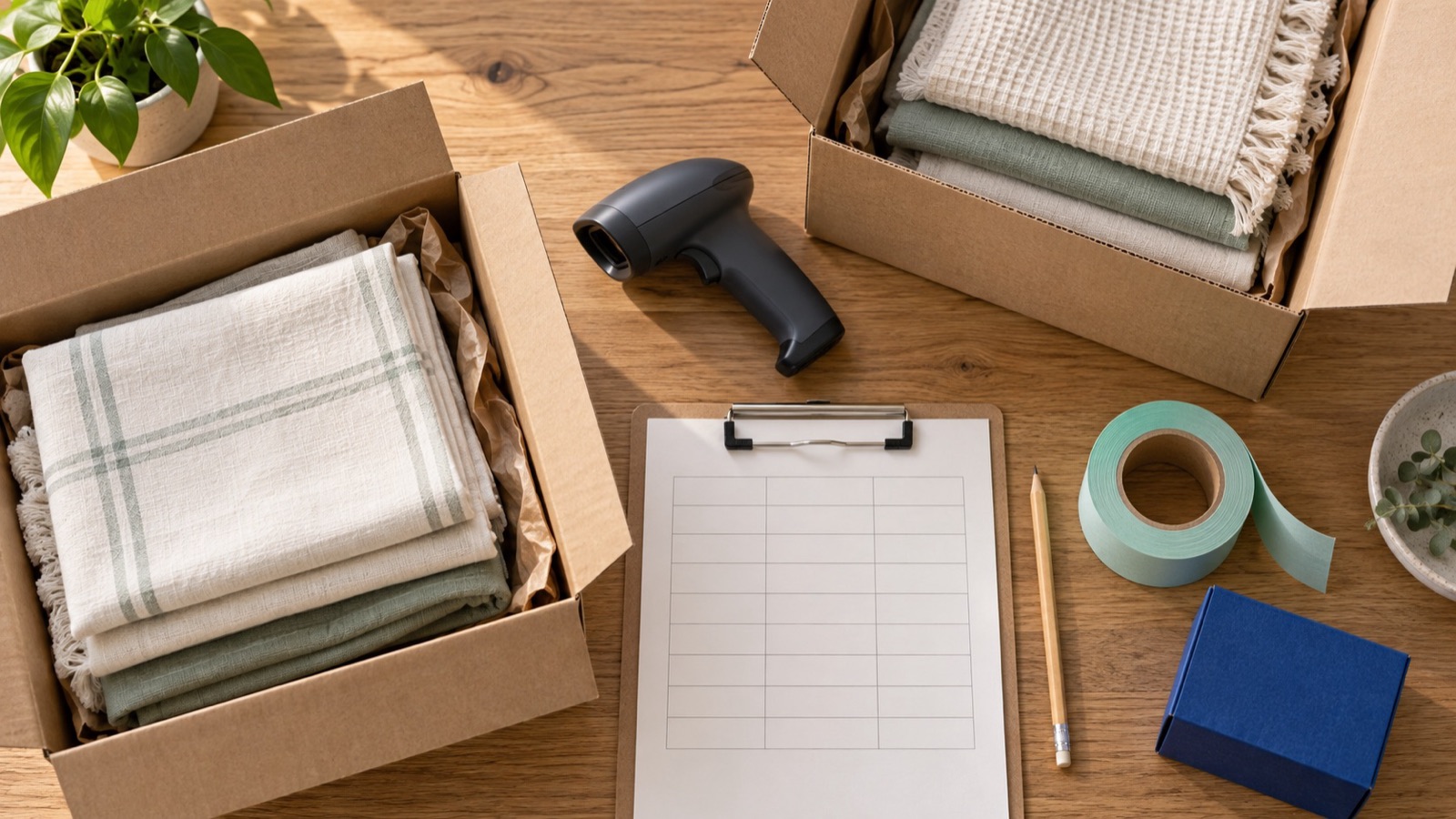
On the record
When a supplier disputes a delivery, the answer is already written down.
Questions
No. Quantities can be typed. A USB or Bluetooth scanner that types into the browser makes receiving faster on a desktop or tablet.
When a receipt is processed. Accepted units are added at the receipt’s destination location. Drafts and open orders do not change stock.
Yes. Each supplier keeps its own SKU, purchase price, minimum quantity, case pack and lead time for that variant.
Download it as a PDF or CSV and send it the way you already do.
Next step
Request early access and we’ll email you when Inventory can be installed on your store. Need something built around your own workflow? Ask about a custom app.
Prefer plain email? Write to support@merchavelo.com